Searching on 4Search
On this page
A 4Search search looks in two places at once: the 4Search index of articles from many outlets, and the web through Google-hosted results. You type a few words or a whole question, and the page shows both answers side by side.
#What a search shows you
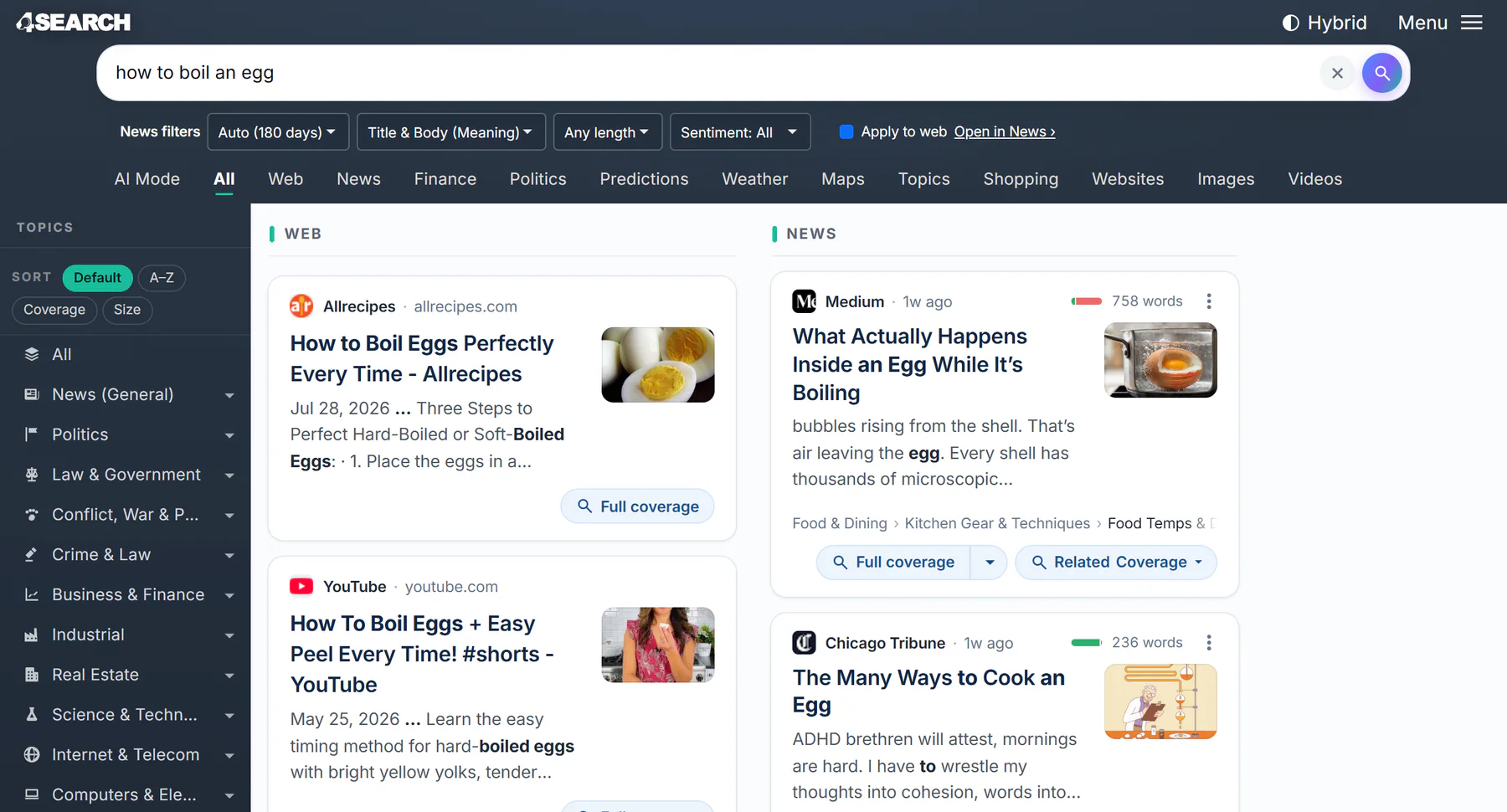
The All tab: your search box and the News filters at the top, Web results in one column and News results in the other.
- 1The search box
- 2News filters: they narrow the News column
- 3The tabs: All, Web, News and the rest
- 4Web results
- 5News results
- News results come from the 4Search index: articles that 4Search has gathered from many outlets. 4Search compares the meaning of your words with the meaning of each headline, so you do not have to guess the exact words a writer used. Each result is a result card.
- Web results are Google-hosted web results, laid out as cards like the News ones. Read more in The Web column.
- Above the lists you may see an AI Overview, a weather, maps, politics or odds card, or a note that 4Search picked a tab for you. They appear only when your search calls for them. See What appears above your results.
#Run a search
- Select the search box and type your words or a question. Suggestions appear after two letters.
- Press Enter, or select the magnifying glass.
- Read the cards. Select a headline to open the article in a new tab.
- To see what else was reported, select Full coverage on a card.
New to the box? The search box and suggestions covers suggestions, multi-line questions and the clear button.
#Choose the tab that fits
The tabs sit under the search box and carry your words with you when you switch.
| Tab | What you get |
|---|---|
| All | Web results and News results together, with the News filters above them |
| Web | The same two columns with Web results first and no filters |
| News | News results first, with the full set of filters |
| Websites | A directory of websites that match a description, and their profiles |
| Images | Pictures from indexed articles |
| Videos | Videos from indexed articles |
The search tabs explains each one and when to choose it. The other tabs open services with their own sections: AI Mode, Finance, Politics, Predictions, Weather, Maps, Topics and Shopping.
#Make the results fit your question
- Set how far back to look, how long an article should be, or how positive it reads: Narrow results with filters.
- Type "last week" or "today" in the search itself: Choose a time window.
- Require an exact phrase or a name: Meaning, text or both.
- Search one site, or leave a site out: Google-style operators.
- Follow a story across outlets: Full coverage and Related Coverage.
#When 4Search opens a different tab
For some searches, 4Search opens News, Shopping or Websites for you and says so at the top. One link takes you back. See Why a search opens on News, Shopping or Websites.
#Keep or send a search
The address in your browser records the search and the choices you made. Copy it, bookmark it or send it. See Share or bookmark a search. The same details are in the filters at a glance, operators at a glance and address parts tables.
#Common questions
Is 4Search the same as Google?
No. The News column comes from the 4Search index, which compares meanings rather than only matching words. The Web column is Google-hosted, so those results look like web results you may know.
Do I need to type special words to get good results?
No. Plain words and full questions work. Operators such as site: are optional extras, explained in Google-style operators.
Why do my results look different from a friend's?
Results depend on the words, the tab, the filters and the day. New articles arrive constantly, and the date menu may widen or narrow its window. See How 4Search finds and orders results.